Check-in app
Run your door from an iPhone. Your team scans ticket QR codes and sees at once whether to let someone in, and you follow arrivals as they happen.
 Free · iPhone
Recent models
Get your team scanning
Create an access code
In My events, open your event and tap Door check-in. Create a code and name it, like “Main door”.
Give it to your door staff
Copy or share the code — it’s only shown once. Staff install the app and enter it. No account needed.
Scan tickets
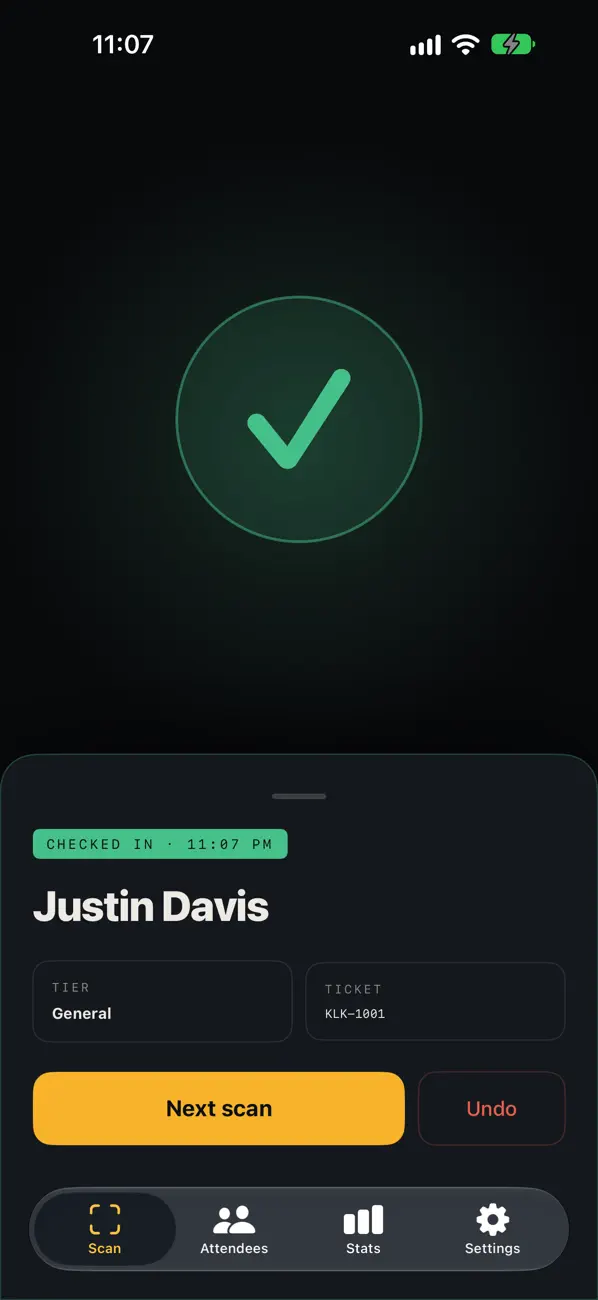
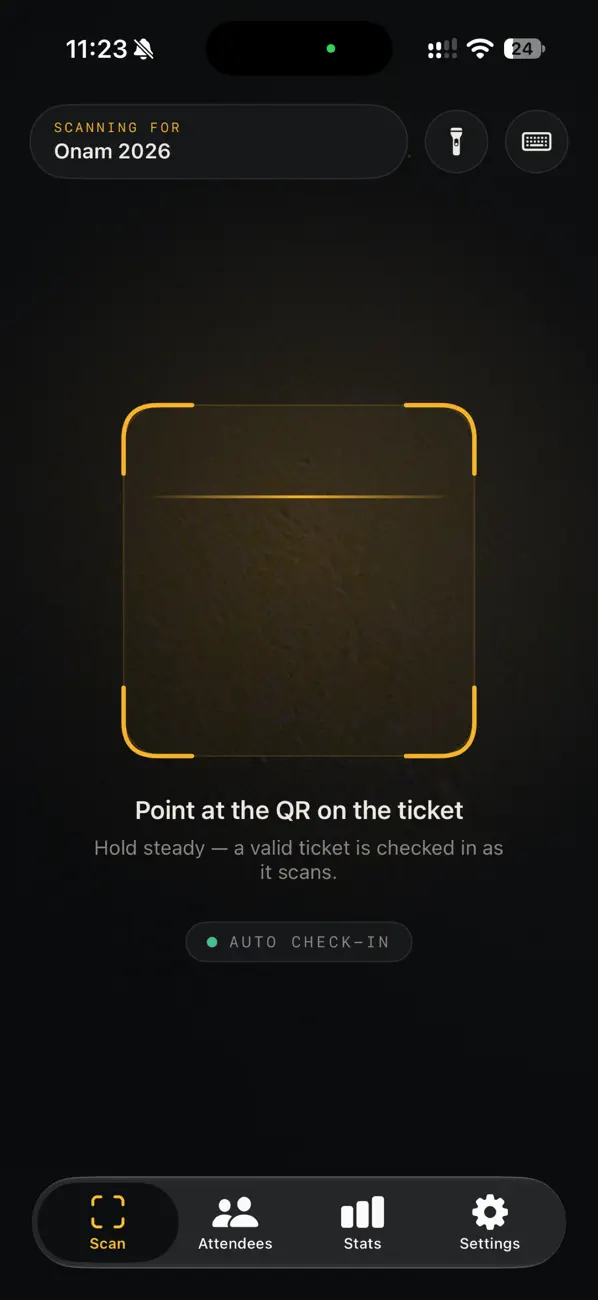
Point the camera at a ticket’s QR code. Green means let them in.
At the door
Group tickets
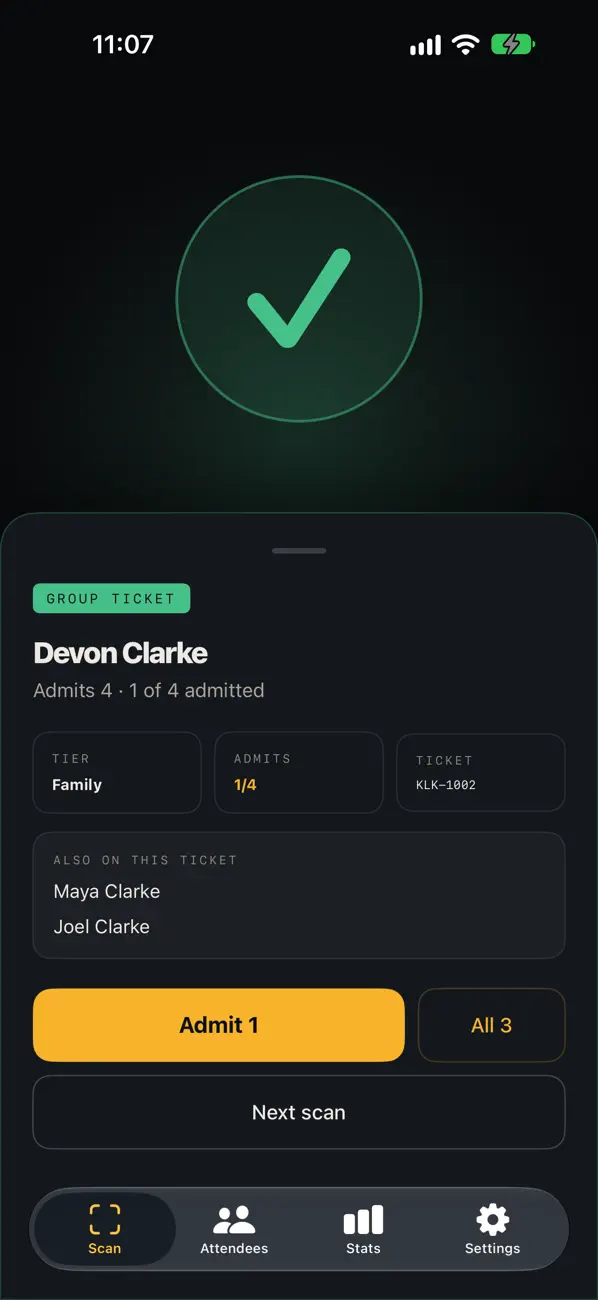
One ticket for many people? Let them in one by one, or all at once.
When a QR won’t scan
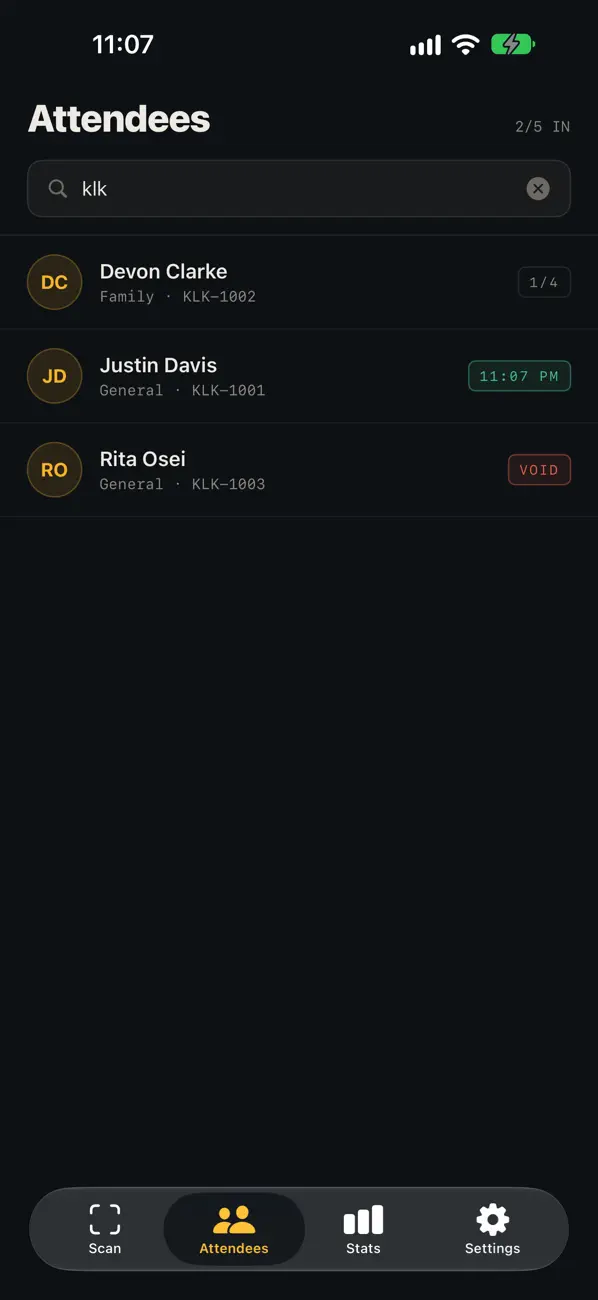
Search by name or order number, or type the code. Turn on the torch in the dark.
Undo a mistake
Let in the wrong person? Undo it within 90 seconds.
Works without a signal
Keep scanning even if the wifi drops. Everything syncs when you’re back online.
Back at your desk
Live numbers
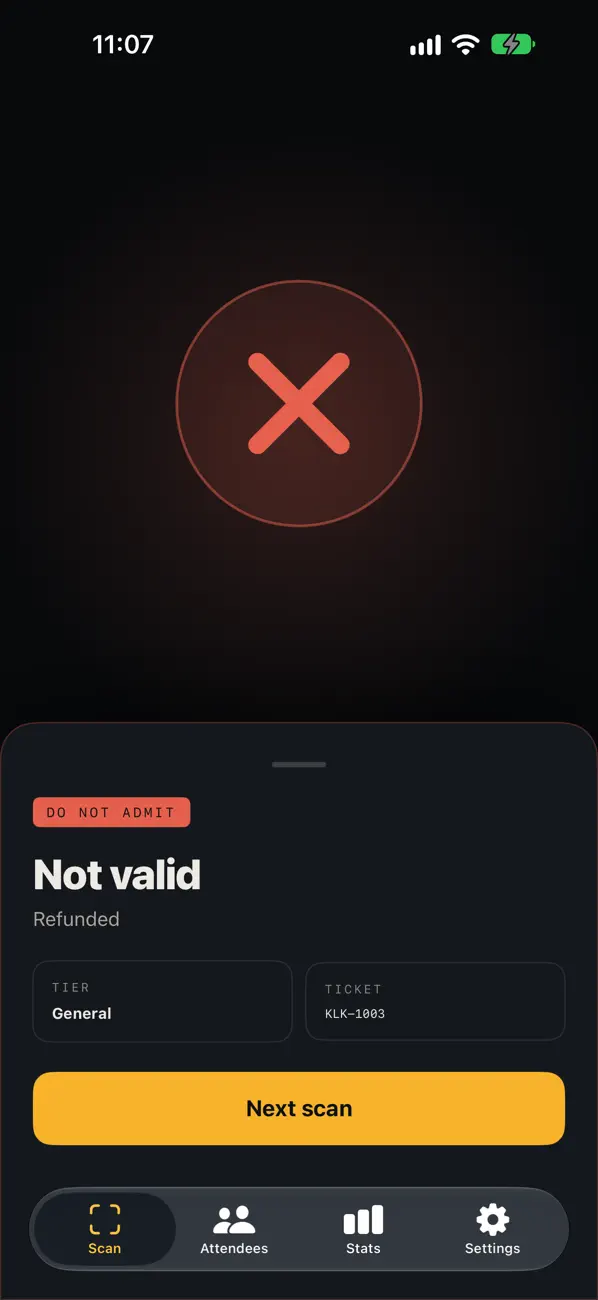
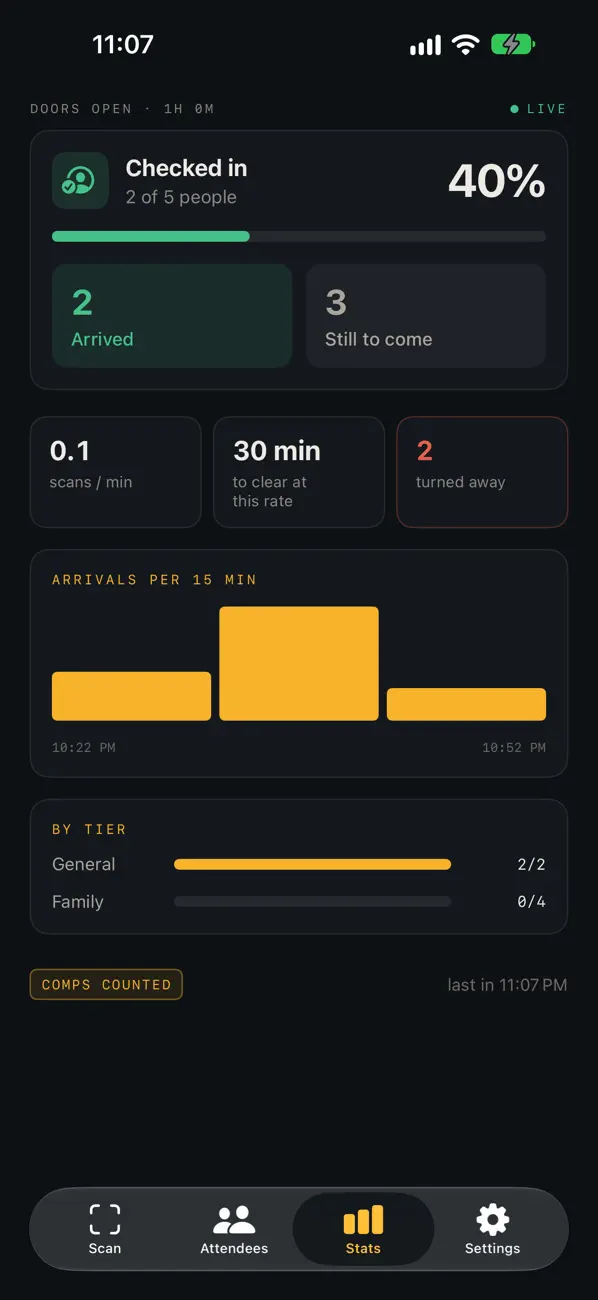
See who’s in, who’s still coming and who was turned away — as it happens.
A log of every scan
Every scan is saved with the time and the phone that made it.
Codes you control
Each code works for one event until the time you set. Turn it off any time.
Attendee details stay limited
Staff only see name, ticket type and seat — never emails, phone numbers or payment info.
Codes are made on your event’s Door check-in page, under My events. Anyone you’ve added as an event manager can make them too.
Go to My events →Apple, the Apple logo and iPhone are trademarks of Apple Inc., registered in the U.S. and other countries. App Store is a service mark of Apple Inc.